Run your first SEO audit
An audit checks a URL against the full battery of SEO, performance and security tests and gives you a 0-100 score with every issue grouped by severity. This takes about a minute.
1. Open the reports page
Log in at app.laravelseo.com and go to Reports in the left menu. The box at the top is where every audit starts.
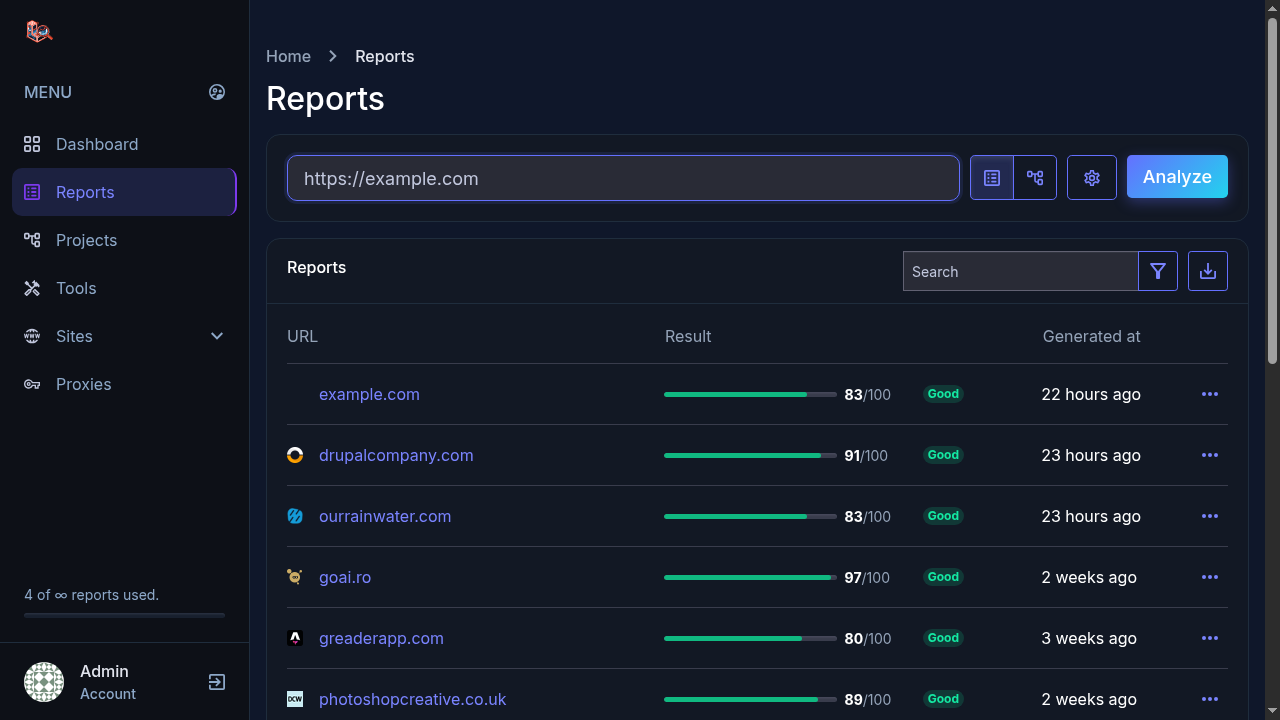
2. Paste a URL and click Analyze
Enter the full URL of the page you want to check, for example https://yoursite.com, and press
Analyze. The app crawls the page and runs its checks: meta tags, headings, links, images,
response headers, page weight, security headers and more.
Reports run on a queue in the background, so a big page does not time out. When it finishes, the report appears in your list with its score and a label: Good, Decent or Bad.
3. Read the score
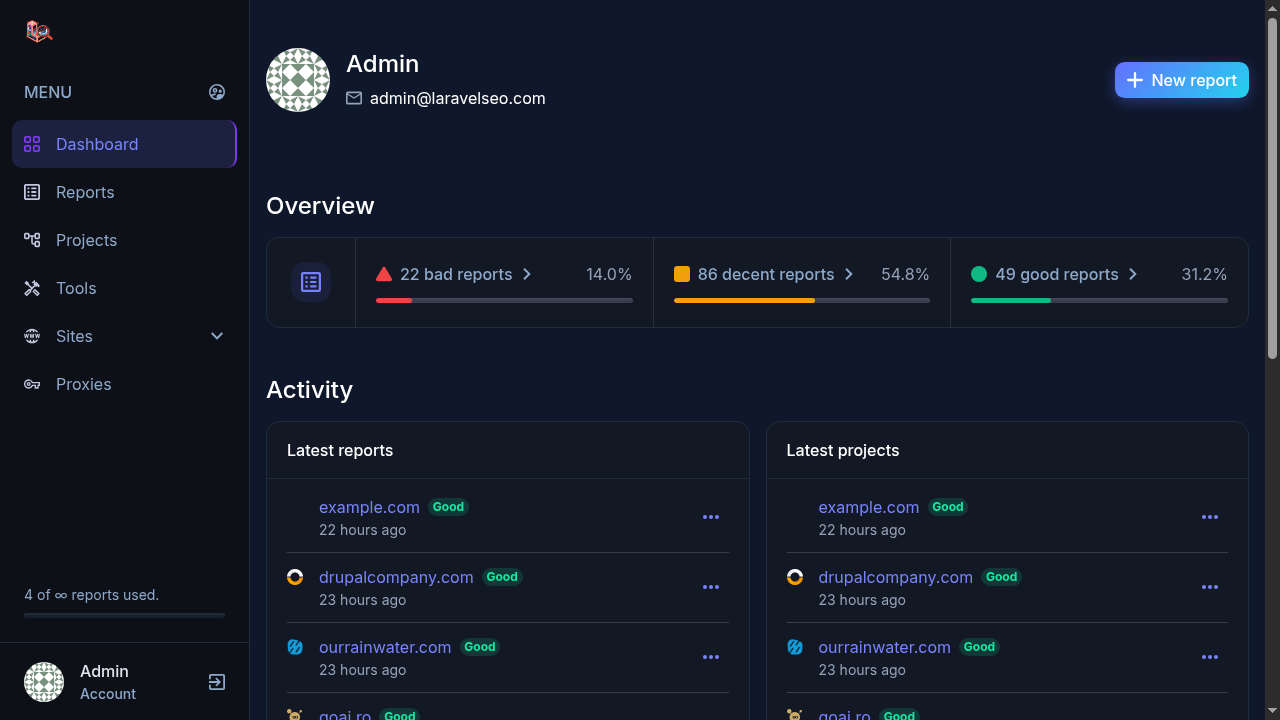
Your dashboard keeps a running split of report quality across everything you have scanned, so you can see at a glance whether things are getting better or worse.
4. Let the AI explain the result
Inside any report, the AI Analyze action turns the raw checks into a plain-language readout: what is actually hurting the page and what to fix first. Use it when a report lists many issues and you need a priority order rather than a checklist.
5. Keep, share or lock the report
- Reports stay in your account and can be exported from the reports list.
- You can edit a report's title and notes from its Edit page.
- A report can be password-protected, so only people you give the password to can open it.
- Adding the same domain again creates a fresh report, which is how you track progress after each fix.
Next: read an audit report tab by tab, or learn how to monitor whole site lists.
Try it yourself
Everything in this tutorial runs in the live app.