Progressive Web Apps, a complete guide for businesses
Progressive Web Apps (PWA) are a technology that turns a website into an app that can be installed on a smartphone or desktop, without going through app stores such as Google Play or the...

Progressive Web Apps (PWA) are a technology that turns a website into an app that can be installed on a smartphone or desktop, without going through app stores such as Google Play or the App Store.
If you have an online business and are considering developing a mobile app, a PWA may be the alternative that saves you time, money and technical resources.
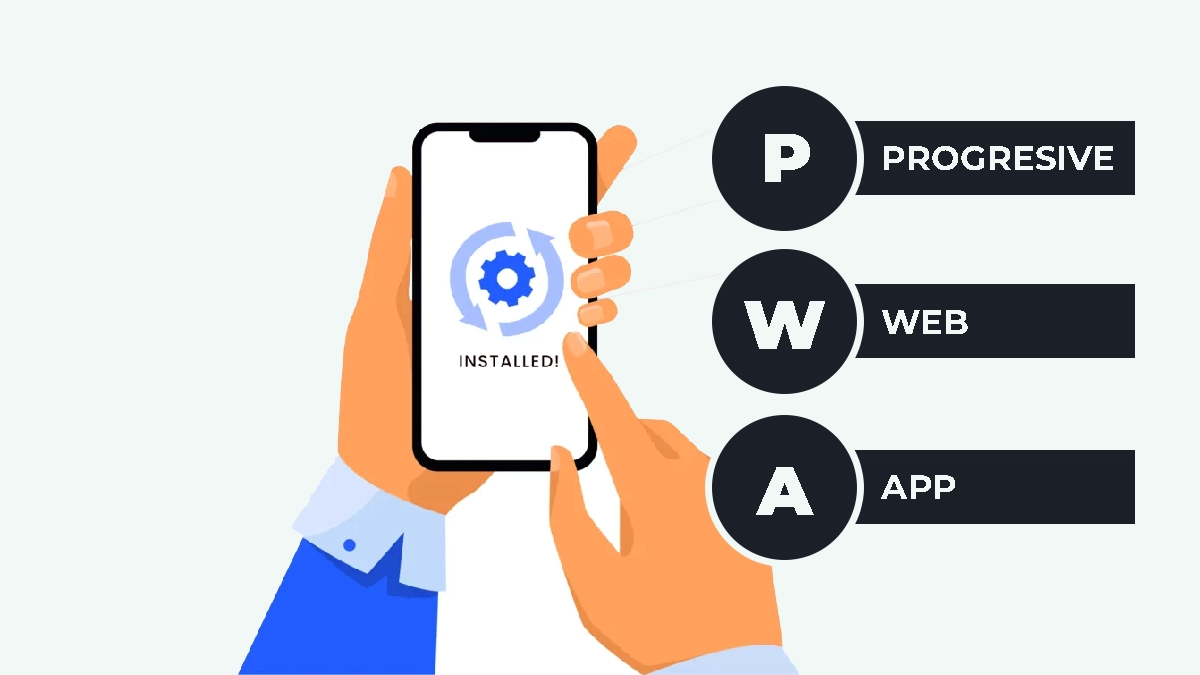
A PWA runs directly in the browser, but gives users the experience of a native app. It can be installed on the phone's home screen, works offline, sends push notifications and loads quickly even on weak internet connections.
For Romanian entrepreneurs who want to reach customers on mobile without investing tens of thousands of euros in development, this technology is worth exploring in detail.
What a Progressive Web App is and how it works
A PWA is a website built with standard web technologies (HTML, CSS, JavaScript) that meets certain technical criteria to provide an experience similar to mobile apps.
Unlike a regular website, a PWA uses advanced features that enable installation, offline operation and access to certain device capabilities.
The technology is based on three main components: a manifest file (which describes how the app looks when installed), Service Workers (which manage offline operation and performance), and HTTPS (the mandatory secure protocol).
When a user visits your website, the browser detects that the site is a PWA and displays an installation option, either automatically or at the user's request.
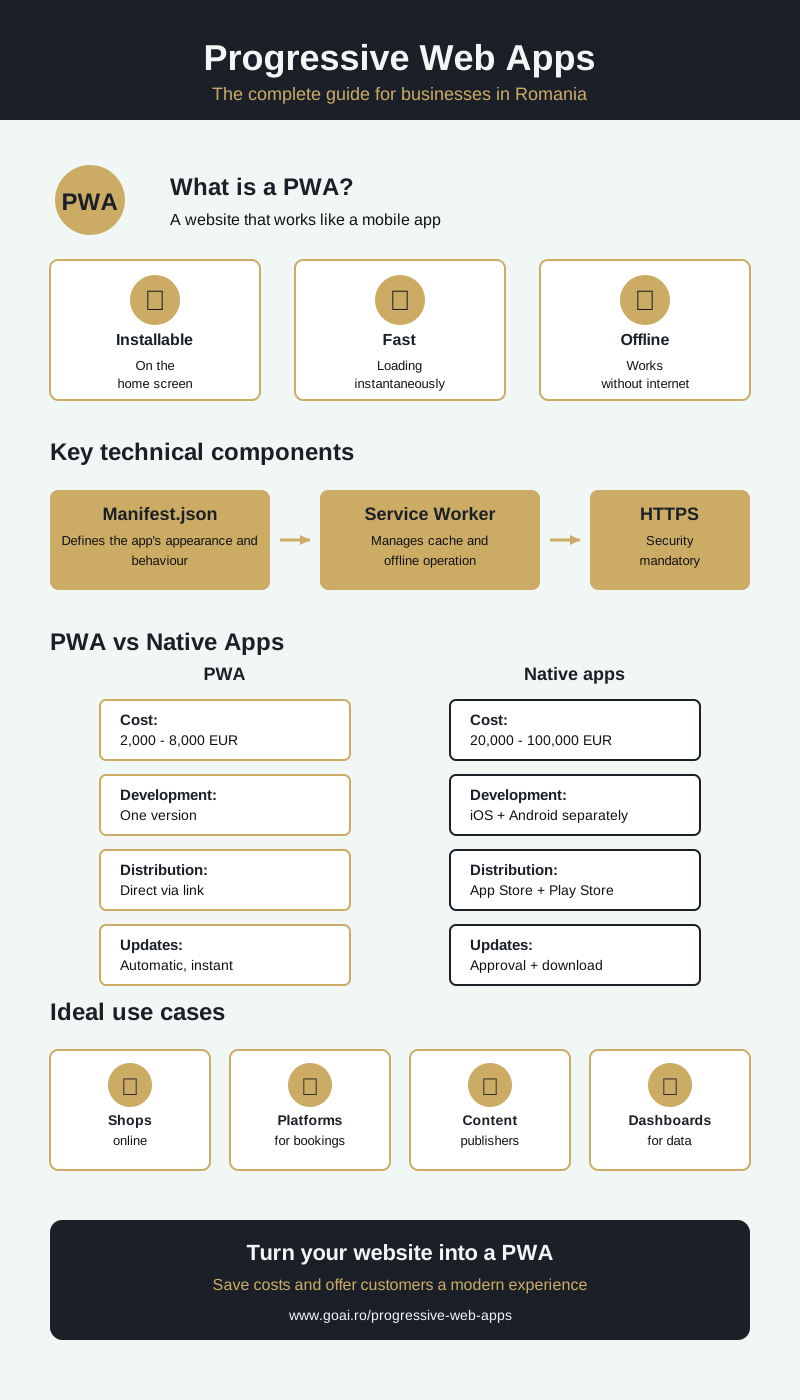
Service Workers, the engine behind PWAs
Service Workers are JavaScript scripts that run in the background, separately from the web page, and act as an intermediary between the browser and the server. Think of them as a dedicated employee who handles all requests to the server, caches resources and makes sure the app works even when the internet is off.
When a user accesses your PWA for the first time, the Service Worker installs itself and starts downloading and saving important files locally: images, CSS styles, JavaScript scripts, and even certain HTML pages.
On subsequent visits, these resources load instantly from the device's memory, rather than from the server, making the app extremely fast.
Here is what a Service Worker can actually do:
- Cache visited pages, viewed products or read articles for offline access
- Synchronize data in the background when the connection returns (for example, submit forms filled out offline)
- Handle push notifications even when the app is not open
Advantages of PWAs over native mobile apps
The main difference between a PWA and a conventional mobile app developed in Swift (iOS) or Kotlin (Android) lies in distribution and maintenance.
A native app must be developed separately for each platform, approved by Apple and Google, downloaded by users from the official stores and updated manually.
Much lower development costs
A native mobile app for iOS and Android requires two teams of developers or developers familiar with both technologies. In Romania, the cost of a medium-sized app starts at 10.000-15.000 euros and can reach 50.000-100.000 euros for complex features.
A PWA is developed once and works on all devices: Android phones, iPhones, tablets and desktop computers.
Moreover, if you already have a working website, turning it into a PWA can cost between 2.000-8.000 euros, depending on the complexity of the implementation.
You maintain a single codebase, a single development team and monthly hosting costs identical to those of your current website.
Distribution without obstacles
Google Play Store and the App Store impose strict rules, 15-30% commissions on transactions and approval periods that can take days or weeks.
A PWA is distributed directly through a link: you send the customer a URL, they open it in their browser and receive the installation option.
For a Romanian ecommerce business, this means you can launch Black Friday promotions, fix bugs or add new products without waiting for approvals. Users automatically get the latest version when they open the app.
Small size and quick installation
A typical native app takes up between 50-200 MB of storage space. The initial PWA can be under 1 MB because it only downloads the necessary resources. On first installation, users do not wait for hundreds of megabytes to download; the app becomes available almost instantly.
This matters for users with older phones or limited storage space, who would otherwise avoid installing your app.
Limitations and points to consider
A PWA does not mean full access to all of a phone's hardware features. Although the technology is constantly evolving and modern browsers allow more and more, there are clear restrictions compared with native apps.
Limited hardware features
A PWA can access the camera, microphone, GPS location and orientation sensor, and can send push notifications. However, it cannot access the phone's contacts, calendar, phone calls, text messages or NFC (except for some experimental APIs in Chrome for Android).
If your business requires deep integration with the operating system, for example, an accounting app that automatically synchronizes text messages from the bank or a fitness app that connects to a smartwatch via Bluetooth, a PWA is probably not the best solution.
Different support on iOS and Android
Android provides excellent PWA support through Chrome. On iPhone and iPad, Safari implements PWAs but with certain limitations: push notifications did not work at all until 2023 (when Apple added partial support in iOS 16.4), and background features are more restrictive.
For Apple users, a PWA works and can be installed on the home screen, but the experience is not identical to Android. If over 70% of your customers use iPhones, test the implementation carefully on iOS before launching.
Practical use cases for Romanian businesses
PWAs suit businesses that need a mobile presence but cannot justify the investment in a full native app. Here are specific situations in which this technology brings real benefits.
Online stores and ecommerce
An online store implemented as a PWA allows customers to browse the catalog offline (after the first visit), add products to their cart without internet and complete the order when the connection returns. Push notifications announce discounts, product availability or order status.
A Romanian fashion store that implements a PWA can reduce acquisition costs through SEO optimization; the website remains indexable by the Google search engine, unlike apps in the App Store, which do not appear in Google's organic results.
Customers find products through search, install the PWA directly from their browser and receive notifications about promotions.
Booking and appointment platforms
Beauty salons, dental clinics, restaurants or auto repair shops can use PWAs for online appointments. Customers install the app, see availability in real time, book a slot and receive a push notification reminder 24 hours beforehand.
The development cost is a fraction of the price of a native app, and if you already use an appointment system on your website, the PWA integrates with the existing infrastructure.
Publications and content websites
Online newspapers, blogs or editorial platforms benefit enormously from offline operation. Users can open the app on the subway without internet and read articles they opened previously. The Service Worker automatically downloads the latest articles when the device connects to WiFi.
Push notifications announce breaking news or the publication of new articles, increasing the website's return visit rate. SEO optimization remains unchanged; articles continue to appear in searches and bring in organic traffic.
How to implement a PWA: technical steps and resources
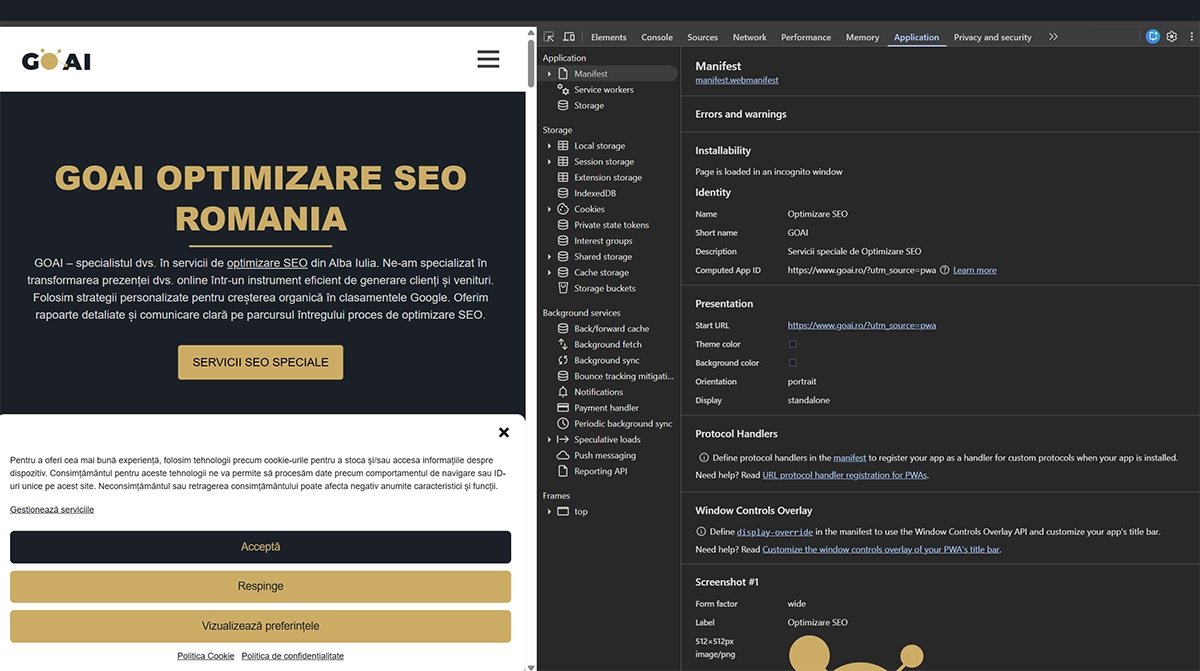
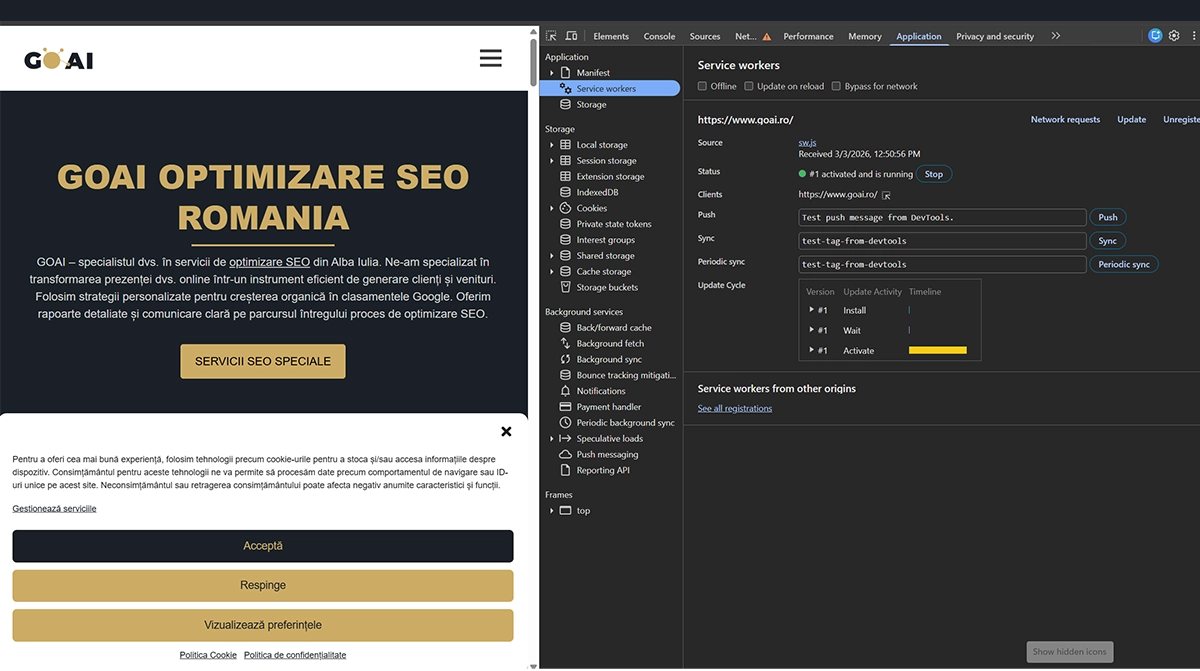
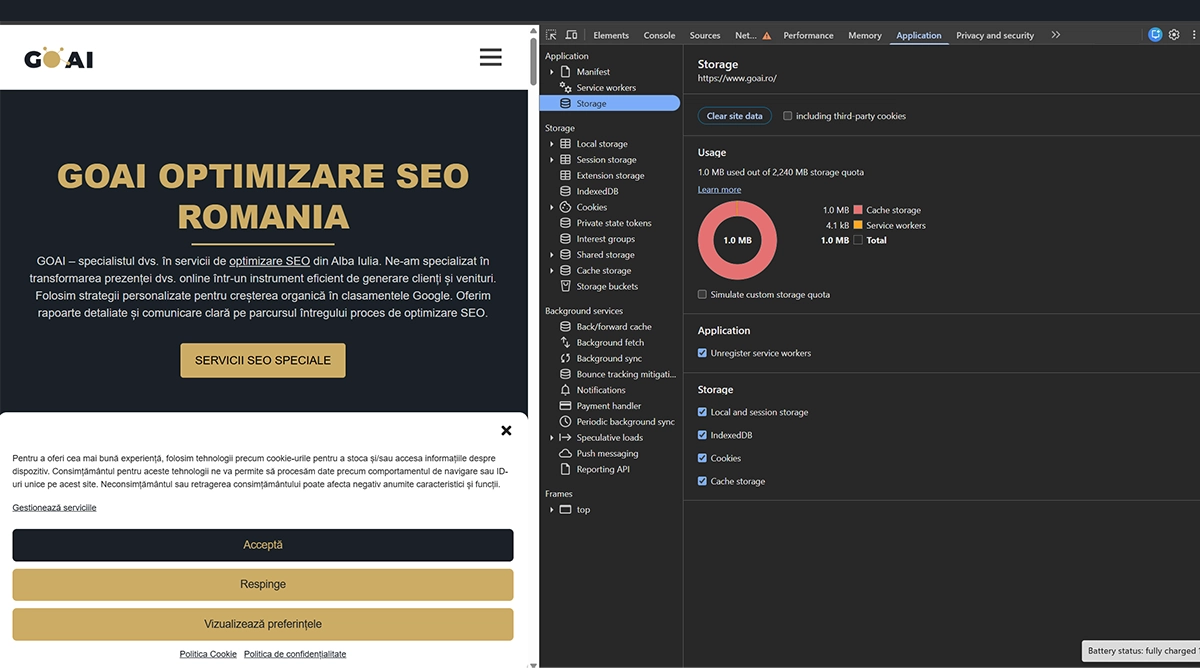
Turning your current website into a PWA requires specific technical work. It is not simply a checkbox in the settings, but development that follows specific standards. Not all PWAs are valid. Below you can see our app installed and free of errors.
Mandatory technical requirements
The website must run on HTTPS, meaning a valid SSL certificate installed on the server. Most hosting providers in Romania (Hostinger, Gazduire Web, Zetta Hosting) offer free SSL through Let's Encrypt. Without HTTPS, Service Workers do not work for security reasons.You need to create a manifest.json file containing information about the app: name, description, icons in different sizes, theme color and display mode. This JSON file is placed in the website's root directory and linked in the HTML head section.
You also need a Service Worker, a JavaScript file (usually named sw.js) that defines the caching strategy. For a simple website, the Service Worker can be fewer than 100 lines of code. Complex apps may require libraries such as Workbox (developed by Google), which simplify cache management.
Development tools and platforms
PWABuilder.com is a free platform developed by Microsoft that analyzes your website and automatically generates the necessary files: manifest, Service Worker and optimized icons. Enter the URL and the platform tests whether the implemented PWA is correct.
Lighthouse is the audit tool built into Chrome DevTools that checks whether the PWA meets Google's standards. It provides a performance score and specific recommendations for improvements, from optimizing images to correctly configuring the cache .
If your website runs on WordPress, there are plugins such as SuperPWA or PWA for WordPress that automate the process. Install the plugin, configure the app's name and icons, and the plugin generates the necessary technical files.
Testing a PWA in Chrome Developer Tools
Chrome offers a full set of development and testing tools for Progressive Web Apps directly in the browser. They allow you to check every technical component, simulate offline scenarios and identify issues before users encounter them.
Accessing the Application panel in Developer Tools
To test the PWA, open the website in Chrome, press F12 or right-click and select "Inspect". In Developer Tools, you will find the "Application" tab, the command center for PWA testing. If you do not see the Application tab immediately, look for it in the three-dot menu to the right of the tab bar.
The Application panel is divided into several sections in the left sidebar: Manifest, Service Workers, Storage (which includes Cache Storage, Local Storage, Session Storage), Background Services and other advanced options. Each section provides detailed information about a specific component of your PWA.
Checking the Manifest file
In the Manifest section of the Application panel, you will see a visual representation of the manifest.json file. Chrome automatically parses the JSON and displays all properties in a readable format. Here you check that the app's name (name and short_name) is correct, the description is complete and the start URL (start_url) points to the right page.
The Icons section shows all icons defined in the manifest, along with their dimensions. Chrome displays a preview of each icon so you can see exactly how the app will look on the home screen. If important sizes are missing (192x192 for Android or 512x512 for the splash screen), Chrome flags these issues with yellow warnings.
Further down, you will find properties such as display mode (fullscreen, standalone, minimal-ui or browser), theme_color (the status bar color on Android), background_color (the splash screen color) and orientation (landscape, portrait or any). If any of these values is missing or incorrect, Chrome indicates the problem in this section.
An important detail: Chrome lets you test app installation directly from the Manifest panel. You will see an "Add to homescreen" link that simulates the installation process without having to navigate through menus. If the link is disabled, Chrome tells you exactly which PWA criteria have not been met.
Monitoring Service Workers
The Service Workers section of the Application panel is where you see your Service Worker's status in real time. It shows the file name (usually sw.js or service-worker.js), its current status (installing, waiting, activated) and manual control options.
When the Service Worker is active, you will see its ID and scope, meaning the part of the website it controls. Usually, the scope is "/" (the entire website), but it can be restricted to certain directories. Chrome also displays when the Service Worker was last updated, helping you check that new changes have been implemented.
The "Offline" option is extremely useful for testing. Check this checkbox and Chrome simulates the lack of an internet connection without actually disabling the computer's network. This lets you test whether the PWA displays cached content or shows error messages. Refresh the page with Offline enabled; if the page loads correctly, the Service Worker is working.
The "Update on reload" checkbox forces the Service Worker to reinstall itself on every page refresh. Normally, the Service Worker updates only when it detects changes in the sw.js file. During development, this option speeds up testing: change the code, refresh, and the new version activates instantly without waiting.
The "Unregister" button completely removes the Service Worker, which is useful when you want to test a new user's experience or need to reset the entire cache. After unregistering, refresh the page and the Service Worker reinstalls itself from scratch.
The section also displays Service Worker events in real time. When the Service Worker intercepts requests to the server, caches resources or receives push notifications, you see logs in the Developer Tools console. This information helps you debug issues; for example, if an image does not load offline, check whether the Service Worker actually cached it.
Inspecting Cache Storage
Under the Storage section of the Application panel, you will find Cache Storage, where you can see exactly which files the Service Worker has saved locally. Each cache has a name (for example, "static-assets-v1" or "pages-cache") and contains a list of URLs for the stored resources.
Clicking a cache shows all entries: CSS files, JavaScript, images, fonts, and even API responses if you have implemented dynamic caching. For each entry, you see the full URL, content type (Content-Type), size in kilobytes and when it was saved.
You can delete individual entries (right-click the URL and Delete) or the entire cache (right-click the cache name). This functionality is important when testing caching strategies: delete the cache, reload the page and check that the Service Worker saves the right resources in the new cache.
Chrome also lets you inspect the contents of each cache entry. Click a URL and you will see a preview of the resource: source code for text files, the image for graphics files or the JSON response for API requests. This lets you check that the Service Worker is not saving outdated or corrupted versions of files.
Simulating different network scenarios
In the Network tab of Developer Tools (not Application), you will find the throttling option, which simulates slow connections. Select "Slow 3G" or "Fast 3G" and test how the PWA behaves on weak mobile connections. A well-optimized PWA should load its interface from the cache instantly, even on slow connections, and update only dynamic data.
Combine network throttling with the Offline option in the Service Workers panel to test extreme scenarios. For example, a user starts browsing on 3G, loses the connection completely, then regains it on WiFi; the PWA should handle all these transitions without crashing or displaying unclear errors.
Auditing with Lighthouse directly from Developer Tools
Instead of using Lighthouse as a separate extension, you will find it built into Developer Tools under the "Lighthouse" tab. Select the "Progressive Web App" category, also check Performance if you want a full report, then click "Analyze page load".
Lighthouse runs dozens of automated checks and gives you a score from 0 to 100. It checks whether the manifest is valid, whether the Service Worker responds to offline requests, whether the icons have the right dimensions, whether the app loads quickly on mobile connections, whether there is a viewport meta tag for responsive design, and much more.
For each issue identified, Lighthouse provides detailed explanations and links to documentation. For example, if the "Fast enough on mobile" score is low, the report shows exactly which resources delay loading and suggests optimization techniques: image compression, removing unused JavaScript and preconnecting to external domains.
Run Lighthouse in Incognito mode for clean results, without interference from browser extensions. Chrome automatically suggests this when you open the Lighthouse panel. Incognito results more accurately reflect the experience of new users who have nothing cached.
Testing and launch
Before the public launch, test the PWA on different devices and browsers. Chrome on Android offers the best experience, but also check Safari on iOS, Firefox and Edge. Installation functionality can vary: on Android, a banner appears automatically; on iOS, users must manually access the option from the menu.
Test offline scenarios: disable the internet on your phone and check that the app displays saved content, not an error. Test push notifications on real devices, not just in the emulator. Check that the app icon appears correctly on the home screen and that the splash screen loads quickly.
Use Remote Debugging to connect your phone to Chrome on your computer. Navigate to chrome://inspect in the browser, connect the phone via USB, and you will be able to inspect the PWA directly on the mobile device using the same Developer Tools. This lets you see exactly how the Service Worker works on the phone, rather than just in a simulation.
Maintenance and update costs
After launch, a PWA requires maintenance similar to a normal website. Content updates are published instantly: change product prices, add new articles or fix errors, and users see the changes as soon as they open the app.
The Service Worker updates automatically in the background. When you publish a new version, the browser detects the changes and downloads the new Service Worker. On the next visit, users get the updated version without doing anything manually.
Hosting costs remain identical to those of the website; you do not pay for separate PWA infrastructure. If hosting the website costs 50-100 lei/month, the PWA adds no extra costs. The only expense may be the push notification service (OneSignal offers up to 10.000 free notifications monthly; paid plans start at 9 USD/month).
Performance and impact on loading speed
A well-implemented PWA loads faster than a traditional website thanks to caching strategies. On the first visit, the Service Worker saves static resources (CSS, JavaScript, fonts, background images). On subsequent visits, these files load from the local cache, rather than from the server.
Users with weak internet connections benefit most. A conventional website loads all resources every time, consuming mobile data and time. A PWA instantly displays the cached interface and updates only dynamic content: new products, articles and prices.
This improved performance also influences SEO optimization. Google prioritizes fast websites in organic Google results, and Core Web Vitals (performance metrics) are becoming increasingly important ranking factors. An optimized PWA has better scores for Largest Contentful Paint and First Input Delay.
Integration with your existing digital strategy
A PWA does not replace the website; it improves it. Users who prefer browsing in the browser continue to access the site normally. Those who want an app experience can install the PWA. Both options use the same codebase and content.
For your digital marketingstrategy, a PWA brings clear advantages. Facebook Ads or Google Ads campaigns can send users directly to the PWA through a link, without redirecting them to the App Store. Conversion increases because friction is minimal: click the ad, install instantly, use immediately.
The newsletter can include a PWA installation link. Loyal customers install the app and receive notifications about promotions, reducing dependence on email marketing (with its declining open rates). The website sitemap remains valid for the Google search engine, so you do not lose organic traffic.
Progressive Web Apps offer the ideal compromise between a website and a native app for most small and medium-sized businesses in Romania. You save on the major investment in mobile development, retain the website's SEO benefits and give users the fast, offline experience they expect. If your business relies on frequent interaction with customers and does not require advanced hardware features, a PWA is worth evaluating as a viable, affordable alternative.
Frequently asked questions about Progressive Web Apps
How much does developing a PWA cost for a small business in Romania?
Costs vary depending on the complexity of the existing website and the desired features. If you already have a working website, turning it into a PWA can cost between 2.000-8.000 euros. This price includes creating the manifest file, implementing the Service Worker, optimizing for offline operation and testing on multiple devices.
For a PWA built from scratch with advanced features (push notifications, background synchronization, complex integrations), the budget can reach 10.000-15.000 euros, still well below the cost of a native iOS and Android app, which would start at 20.000-30.000 euros for both platforms.
Do PWAs work on iPhone or only on Android?
PWAs work on both platforms, but with differences in experience. On Android through Chrome, support is complete: automatic installation, push notifications, advanced offline operation and access to most modern web APIs. On iPhone and iPad, Safari implements PWAs but with limitations.
Until 2023, push notifications did not work at all on iOS, and Apple only added partial support in iOS 16.4 (April 2023). iPhone users can install the PWA on their home screen and use it offline, but background features are more restrictive than on Android.
If most of your customers use iPhones, test the implementation on real Apple devices before launch.
Can I add the PWA to Google Play Store or the App Store?
Yes, there are ways to distribute PWAs through the official stores, although it is not necessary. Google Play accepts TWA (Trusted Web Activities): you essentially package the PWA in a minimal Android container that behaves like a native app. Platforms such as PWABuilder automatically generate the Android package ready to upload to the Play Store.
For the App Store, the process is more complicated: you need to package the PWA using tools such as Capacitor or Cordova, which adds another layer of complexity. The advantage of distributing directly through a link (without stores) is that you avoid the 15-30% commissions, approval process and restrictions imposed by Apple or Google.
What happens if the user clears the browser cache?
If users manually clear the browser cache from their phone's settings, the PWA will lose locally saved resources: images, pages and offline data. The next time it opens, the Service Worker will download these resources from the server again, just as on the first visit.
The app is not completely uninstalled: the icon remains on the home screen and the PWA continues to work, but it will require an internet connection for the first load after the cache is cleared.
Important data (orders, user preferences, products in the cart) should be stored on the server, not just locally, to avoid losses. The cache is intended for performance and offline operation, not permanent storage of critical data.
Does a PWA use more battery than a normal website?
No, a well-implemented PWA uses less. The Service Worker runs in the background only when needed: when it receives a push notification, synchronizes data or intercepts requests to the server. The rest of the time it remains idle.
Unlike native apps, which often run background processes constantly, a PWA uses resources more economically. Battery consumption mainly comes from actual use of the app, not from having the PWA installed.
However, if you implement aggressive push notifications (sent every 10 minutes), they can affect the battery, just as a native app with the same configuration would.
How do I update the PWA after users have installed it?
Updating is automatic and transparent. When you publish changes on the server (change JavaScript code, CSS, images or the Service Worker file), the browser automatically detects that a new version is available.
The Service Worker downloads the new files in the background, but continues to use the old version until the user closes the app completely.
The next time it opens, users automatically get the updated version. You do not need to send update notifications, and users do not need to download anything manually. If you want to force an immediate update (for critical bugs), you can implement an in-app message asking users to reload the page.
Does a PWA completely replace the need for a native mobile app?
It depends on your business requirements. A PWA is the ideal solution for online stores, content platforms, booking apps, data dashboards, productivity tools and most use cases that do not require deep hardware access.
If the business requires features such as Bluetooth for connecting to external devices, access to contacts and the calendar, intensive on-device processing, NFC integration for contactless payments or maximum graphics performance (complex 3D games), a native app remains the right choice.
For 70-80% of small and medium-sized businesses in Romania, a PWA offers everything needed at a fraction of the cost.
How long does developing a PWA take?
To turn an existing website into a working PWA, the typical period is 2-4 weeks of work. This includes technical analysis, creating the manifest, implementing the Service Worker with appropriate caching strategies, performance optimization and testing on multiple devices and browsers.
If the website is built on WordPress or another popular CMS, the process can be faster (1-2 weeks) using dedicated plugins that automate technical configuration.
For a complex PWA developed from scratch with advanced features such as segmented push notifications, background synchronization and integrations with external systems, the period can reach 2-3 months.
Does a PWA affect Google rankings or SEO optimization performance?
A PWA does not negatively affect SEO optimization; on the contrary, it can improve rankings in Google's organic results. The Google search engine indexes the PWA just like a normal website, because the content remains accessible through standard URLs.
The Service Worker does not prevent Google's crawlers from indexing pages. Moreover, a well-implemented PWA loads faster thanks to caching, which improves Core Web Vitals scores, metrics that directly influence rankings.
Google prioritizes fast websites in search results, and an optimized PWA has an advantage in Largest Contentful Paint and First Input Delay. The meta description, title tags and HTML structure remain unchanged, so all existing SEO optimization practices continue to work.
Can I send push notifications without the user installing the PWA?
Yes, on desktop and Android, users can receive push notifications even if they have not installed the PWA on the home screen. They only need to grant notification permission when browsing the website.
On iOS (iPhone/iPad), however, push notifications work only if the user has actually installed the PWA on the home screen; Safari does not support notifications for uninstalled websites.
This Apple restriction creates a difference in experience between platforms. To maximize the notification opt-in rate, encourage Android users to accept permission directly in the browser, and iOS users to install the app first.
Source references
Dorel Tănase
Original author at GOAI. Published here in English with permission.